eFootball 2026 Download Guide: PC, PS5, Xbox & Mobile – eFootball
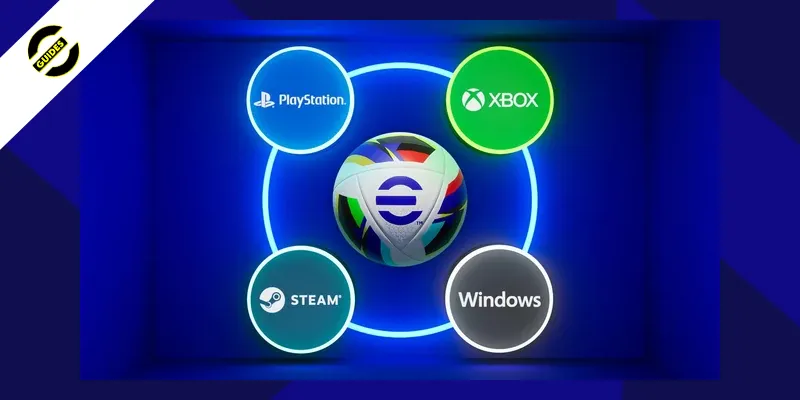
Step-by-step download guide for eFootball 2026 on Steam, PlayStation, Xbox, and mobile. Learn platforms, requirements, and setup tips.
Table of Contents
You can grab eFootball free on Steam, PlayStation, Xbox, iOS, and Android, with installs typically around 3.1–3.2 GB. Sign in with a KONAMI account to sync progress and enable cross-play, and stick to official stores for safety. Keep the app updated for weekly Live Updates and events. Wondering about platform steps, system requirements, or tips to avoid stutter and lag? Let’s walk through where to download, what you’ll need, and how to stay current.
Key Takeaways
- Download eFootball free on Steam (Windows), PlayStation Store (PS4/PS5), Microsoft Store (Xbox), App Store (iOS), and Google Play (Android).
- Typical initial download size is about 3.1–3.2 GB across all platforms, with additional space for patches.
- Enable a KONAMI account to sync progress and access cross-platform multiplayer across PC, consoles, and mobile.
- Use only official stores; avoid third‑party APKs and verify Konami Digital Entertainment as the publisher.
- Keep a stable internet connection for installation, weekly Live Updates, ranked play, and events.
Efootball on Steam
Although it’s free to play, eFootball on Steam delivers a full-featured online football experience on Windows with cross-platform multiplayer against console and mobile players. You’ll download the Steam version to access VS AI, Online Matches, eFootball League’s 10 tiers, Dream Team events, and Match Pass rewards. It runs on Unreal Engine for sharper animations and visuals, with a typical install size around 3.1–3.2 GB. Expect weekly live updates that mirror transfers and real-world performances.
Stay online—an active connection is required for ranked play, updates, and events. The client is reported safe by VirusTotal, and eFootball on Steam lists Konami Digital Entertainment as the developer. It’s free to install, with optional in‑app purchases like eFootball Coins and Match Passes supporting your progression.
PlayStation 4 and 5 Download Guide
Getting eFootball onto your PlayStation is straightforward: open the PlayStation Store on PS4 or PS5, search “eFootball,” and select Download. Sign in with your PSN account to enable online features and cross‑platform play. On PlayStation 5, you’ll benefit from improved graphics and animations via Unreal Engine; you can also play on multiple PS5 consoles when you’re logged into the same account.
Expect a download of roughly 3.1–3.2 GB, which can vary with patches. Use a fast, stable internet connection for a smooth download and reliable weekly live updates. After installation, enable automatic updates so eFootball stays current. For patch notes, in‑game news, and compatibility details, open the PlayStation Store listing and tap App Support to reach Konami’s official eFootball website.
Xbox One and Series X|S Download Guide
On Xbox One and Xbox Series X|S, download eFootball from the Microsoft Store: search “eFootball,” open the product page, and select Get/Install. This download guide helps you get playing fast—expect an initial 3.1–3.2 GB download. Ensure you’ve got stable internet for matches and weekly Live Updates. Cross‑generation works, so Xbox One can face Xbox Series X|S; the newer consoles may deliver smoother performance and higher fidelity.
Download eFootball on Xbox via Microsoft Store—quick 3.1–3.2 GB install, stable internet, smooth cross‑gen play
1) Set up multiplayer: you’ll need an active Xbox Live Gold or Xbox Game Pass Core subscription to play online modes, join friend lobbies, and access ranked play.
2) Explore modes: jump into Dream Team, Online Matches, and eFootball League tiers; buy optional editions (like Messi or Yamal) via the in‑game store.
3) Enjoy cross‑platform matchmaking with supported platforms for broader competition.
Ios App Store Download
Prefer playing on the go after setting up Xbox? Head to the iOS App Store, search eFootball, and tap download. It’s free, needs iOS 13.0 or later, and roughly 3.1–3.2 GB of space. Use Wi‑Fi and ensure a stable connection for a smooth setup.
Launch the game to follow the in‑game tutorial; complete every step to unlock Lionel Messi. You’ll get guidance on controls, tactics, and modes, then jump into matches using cross‑platform multiplayer. Expect weekly live updates that refresh squads and transfers, plus an In‑Game News hub with patch notes and fixes.
Enable Game Center for leaderboards and challenges. The app supports many languages, including English, Spanish, French, German, Japanese, Korean, and more. Optional in‑app purchases offer eFootball Coins; Belgium restricts loot boxes requiring them.
Android Google Play Download
Kick things off by opening Google Play, searching “eFootball,” and tapping Install—it’s free, needs about 3.1–3.2 GB of space, and requires a stable internet connection. On Android, sign in with your Google Play account, then let assets download on first launch. Complete the tutorial to unlock Lionel Messi and try Smart Assist for easier dribbles, passes, and shots.
Kick off on Google Play: install eFootball, sign in, download assets, finish tutorial to unlock Messi.
- 1) Check compatibility: a modern Android device is recommended for smooth play, visuals, and live updates that sync transfers and weekly events.
- 2) Manage storage and data: stay on Wi‑Fi for patches; eFootball streams content frequently.
- 3) Explore the in‑app store: buy eFootball Coins (e.g., 100/$0.99, 1050/$9.99, 12000/$99.99) for signings and packs. Note: Belgium restricts paid loot boxes requiring Coins.
Cross-Platform Multiplayer Setup
After installing on Android—or any platform—you can jump into cross-platform matches where PC, PlayStation, Xbox, iOS, and Android players face each other. To enable cross-platform play in eFootball, sign in with your KONAMI account; console users should also log into PlayStation Network or Xbox Live. Verify your connection is stable and fast, since regional servers handle matchmaking and lag hurts timing and animations.
For quick play, use eFootball’s matchmaking to enter ranked eFootball League on your region. To play with friends, open friend matches or 3v3 co-op, share the Match Room number, and set a password if needed. Your progression and Live Updates sync server‑side across platforms. Note: purchases and subscriptions may remain platform-specific despite cross-platform multiplayer.
System Requirements and Compatibility
Before you download eFootball, confirm your device meets the basics: a stable, fast internet connection and roughly 3.1–3.2 GB of free storage for the initial install. You’ll also want to check platform‑specific system requirements to ensure smooth play and compatibility with cross-platform features.
1) PC/Console: On Windows (Steam), PS4/PS5, and Xbox One/Series X|S, verify OS/firmware updates and available storage space beyond the initial download for patches. Cross-platform multiplayer works across PC, console, and mobile.
2) iOS/iPadOS: eFootball supports iOS/iPadOS 13.0 or later. Confirm free storage and keep your device updated for stability and controller support where applicable.
3) Android: Minimum requirements vary by device; check the Google Play listing for compatibility, OS version, and required storage. Older hardware may limit performance.
Supported languages include English and more. Ensure your internet connection remains reliable.
Network and Performance Tips
Although eFootball looks great, smooth online play depends on your connection and device performance. Use wired Ethernet whenever possible; if not, choose 5 GHz Wi‑Fi over 2.4 GHz to cut interference. Aim for a ping under 60 ms to minimize input lag and weird desyncs. On your router, enable Quality of Service (QoS) to prioritize gaming packets.
Close background apps, cloud syncs, and downloads before matches. Keep at least 3.2–4 GB of free RAM/space so animations and loading don’t stutter. On mobile, disable battery saver, select the performance mode, and tune Smart Assist to your skill level for steadier dribbling and passing.
If you’re still lagging, test different servers or times, move closer to the router, and reduce other devices’ bandwidth use.
Updates, Patches, and Version History
Stable matches start with your setup, but they stay consistent because eFootball updates the game constantly. You’ll see weekly live updates that sync squads, transfers, and form so cross‑platform multiplayer stays fair. Check patch notes in the in‑game News to confirm fixes to shooting glitches, goalkeeper logic, animations, or referee calls. Major releases in the version history, like 10.0.2, roll out platform updates across Steam, PS4/PS5, Xbox One/Series X|S, iOS, and Android, often adding Unreal Engine optimizations.
1) Enable auto‑update so live updates and patches download promptly and keep Match Pass and Events aligned.
2) After each update, read patch notes, then test your tactics in training to feel gameplay tweaks.
3) Track version history to plan around seasonal editions and content drops.
Official Sources and Safe Download Links
Start on the right foot by downloading eFootball only from official sources: Konami’s website or verified platform stores. Use safe download links to avoid malware and fake APKs. For a clean eFootball download, go to the Konami website, Steam (Windows), PlayStation Store (PS4/PS5), Microsoft/Xbox Store, or App Store Google Play. Check system requirements, storage (mobile ~3.1–3.2 GB), and a stable Wi‑Fi connection for the initial install and weekly Live Updates.
| Platform | Official source | Notes |
|---|---|---|
| Windows | Steam | Verify publisher: Konami |
| PlayStation | PlayStation Store | Accept PSN terms |
| Xbox | Microsoft/Xbox Store | Cross‑play supported |
| iOS | App Store | iOS 13.0+ required |
| Android | Google Play | Avoid third‑party APKs |
Create/link your eFootball account for cross‑platform play. Review prices for coins or editions directly on official store pages.
Frequently Asked Questions
What Platform Is Efootball On?
It’s on Windows via Steam, PlayStation 4 and 5, Xbox One and Series X|S, plus iOS and Android. You’ll play cross-platform, but you’ll need stable internet and platform accounts. Check system requirements and updates before installing.
What Devices Can You Play Efootball On?
You can play eFootball on Windows (Steam), PlayStation 4 and 5, Xbox One and Series X|S, plus iOS and Android devices. Ensure you’ve got a stable internet connection, updated system software, and enough storage before installing.
Is Efootball on Xbox?
Yes, you can play eFootball on Xbox One and Xbox Series X|S. You’ll get online play via Xbox Live, cross-platform matchmaking, Live Updates, and achievements. Expect better performance on Series X|S. Ensure a stable internet connection.
Is Efootball Free on PC?
Yes, it’s free on PC via Steam. You download the client, ensure your system meets requirements, and keep a fast, stable internet connection for smooth play. Expect optional in‑game purchases, regular updates, and cross‑platform multiplayer support.
Conclusion
You’re ready to jump into eFootball on your favorite platform. Download it from the official store, sign in with your KONAMI account, and you’ll keep your progress synced across devices. Check system requirements, use a wired or strong Wi‑Fi connection, and keep auto‑updates on for live events and patches. Avoid third‑party files to stay safe. With regular updates, cross‑play, and quick installs, you’ll spend less time setting up and more time scoring goals. See you on the pitch!


Analyst. Tactician. Content creator. Since 2023, Amin has been breaking down the eFootball meta—covering Tactics, Dream Team, Player Builds, and Rewards & Coins—to help players climb ranked with data-driven, practical guides.
Related Blog Posts